You can export your REPSLog entries at any time as a formatted, CPA-ready PDF report, an Excel workbook and CSV files, for recordkeeping or tax purposes, on iPhone, Android and the web.
Steps to Export
Go to Settings.
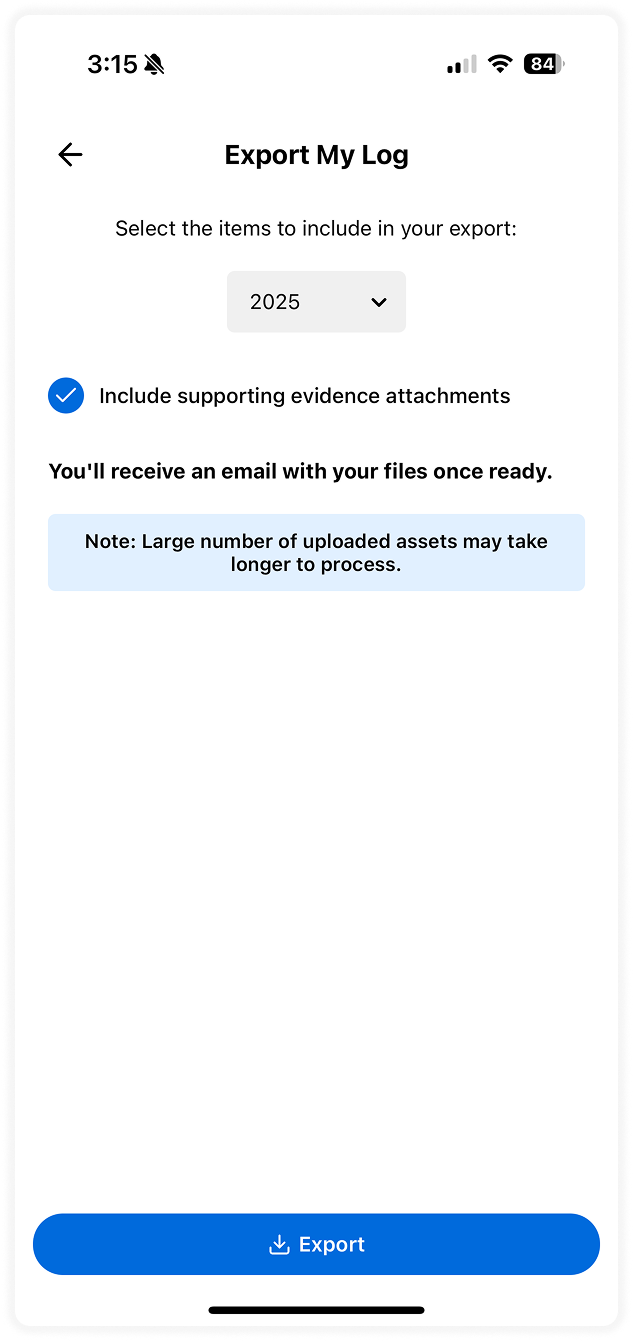
Tap Export My Log.
Select the tax year you want to include in your export.
If you have uploaded supporting attachments and want them included, check the box to include files.
If you'd like to include the exact date and time each entry was created and last updated, select the timestamps checkbox.
If you'd like a per-property summary for your CPA, check Include Schedule E summary.
-
Tap the Export button.
Receiving Your Export
You will receive an email sent to the address you use to log in, containing your download link.
If you do not receive the email, you can use the link displayed on your screen to access your files directly.
What the Export Includes
A CSV file and a formatted, CPA-ready PDF report of your long-term rental entries (
ltr_entries.csvandltr_entries.pdf), and the same pair for your short-term rental entries (str_entries.csvandstr_entries.pdf). A file is only included when that type has entries in the tax year.An Excel workbook,
entries.xlsx, with the same tables as sheets (LTR Entries, STR Entries, Properties). The header row is frozen and filterable, and Hours Spent is stored as a number, so a SUM works without any cleanup.A
properties.csvfile listing your properties (for troubleshooting purposes only).If you tick Include supporting evidence attachments, a
mediafolder with every attachment, and each entry's row lists its file names and notes.If you tick Include timestamps, the date and time each entry was created and last updated (Created At and Updated At).
If you tick Include Schedule E summary, an extra
schedule_e_summary.pdf: one block per property, in the order Schedule E lists properties (A, B, C), with the property's total hours, the goal it is tracked against, hours by category and hours by participant, followed by the full entry table. Short-term and long-term properties are in the same document. It is not a completed Schedule E: income, expenses, depreciation and rental days are not tracked in REPSLog, so your CPA carries the hours over from it.Everything arrives in one ZIP file, downloaded from the link in the email.
Notes
You may export your entries at any time during the year, up to 10 exports per day.
The download link stays valid for 7 days. After that, run a new export.
Once downloaded, open
entries.xlsxin Excel or Numbers, or the CSV files in Google Sheets or another spreadsheet program, to review, sort and total.
REPSLog does not track depreciation. To estimate what your depreciation and a cost segregation study could be worth, use the cost segregation calculator.
See also
Feature overview
Related articles
- How to Add Notes and AI Descriptions to Your Attachments
- How do I upload/import past tracked data into my REPSLog account?
- How to Invite and Manage User Access to Your REPSLog Account
- How to Log Past Activities (Backdate Entries) in REPSLog
- REPSLog Data Security- Where My Data Is Stored and How It’s Protected?
Background on the blog
Try it in REPSLog: iPhone, Android or the web app. Free for 14 days.