The Timer lets you track your REPS activities in real time, without manually calculating durations later.
This feature is currently available on the REPSLog mobile app.
How to start the Timer
Go to the Overview screen
Tap the Start Timer button
Tap Start
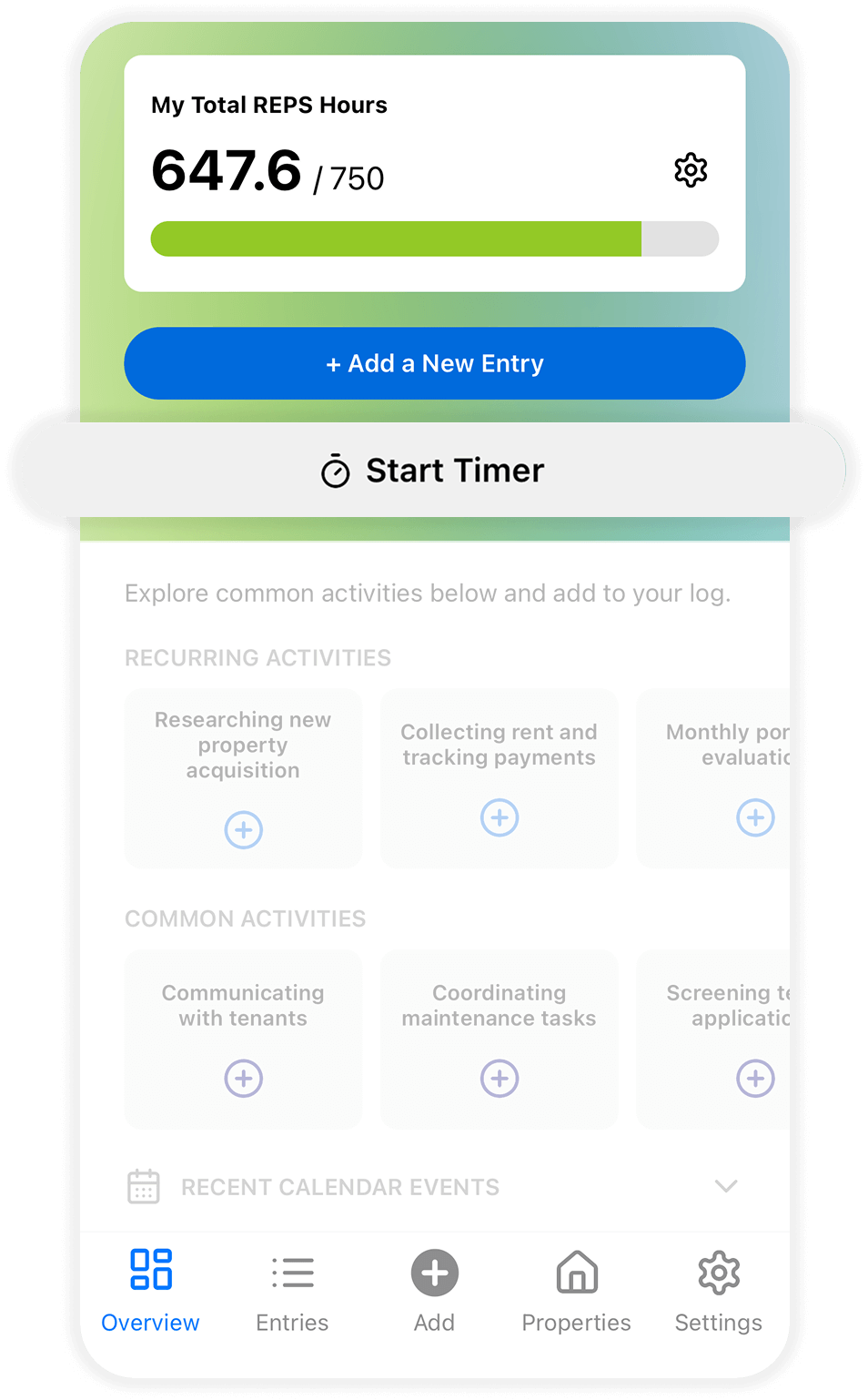
Once started, the timer begins recording your activity time.
Timer controls: Complete, Pause, and Cancel
After you start recording, you\3id="complete">✅ Complete
Use Complete when you finish your activity.
The tracked time will be added to a new entry
You will be able to review and adjust the duration before saving
⏸️ Pause
Use Pause if you need to temporarily stop tracking.
The timer stops counting
You can resume later without losing the recorded time
This is helpful if you take a break or switch to a non-REPS activity.
❌ Cancel
Use Cancel if you started the timer by mistake.
The recording will be discarded
No entry will be created
Control the Timer from your lock screen (iOS)
On iPhone, the running Timer appears as a Live Activity on your lock screen and in the Dynamic Island. You can control it there without opening the app.
Tap Pause or Resume to stop and restart tracking. When you resume, the timer continues from where it left off (it does not reset to zero).
Tap Done to complete the activity and save the tracked time to a new entry.
The timer keeps its state even if your phone restarts or the app is fully closed, so the time shown on your lock screen stays accurate.
Tip: The lock-screen controls mirror the in-app controls, so you can start on the lock screen and finish in the app (or the other way around) without losing any time.
On Android, the Timer runs in the background as described below, but the interactive lock-screen Live Activity is not available.
Does the Timer keep running in the background?
Yes. Once started, the timer continues running in the background while you use other apps or lock your phone.
You do not need to keep the app open.
Where do I see the tracked time?
When you tap Complete:
The recorded duration will appear in your entry automatically
You can edit or adjust the duration anytime before saving
Tips for best use
Start the timer when beginning a REPS-related activity (calls, research, property visits, etc.)
Pause instead of canceling if you plan to continue the same task
Always review the duration before saving your entry
See also
Feature overview
Related articles
- Getting Started with REPSLog
- How to Use Quick Actions from the REPSLog App Icon
- How to Use REPSLog AI Features to Log Faster
- How to Log an Entry by Voice, and What the Live Chips Mean
- Understanding Your REPSLog Dashboard
Try it in REPSLog: iPhone, Android or the web app. Free for 14 days.
If you are still stuck, contact us and we will help.