The Developer Portal is where you manage everything that connects to your REPSLog data over the API: your API keys, the scopes they grant, a live Playground for testing, and the full API reference. It is also the same place ChatGPT, Claude and Grok send you when you connect those assistants.
This article walks through signing in, creating a key, choosing scopes, rotating and revoking keys, using the Playground, and finding the docs.
Premium feature. API access is part of REPSLog Premium. If you are on Free or Starter, you can still open the portal and sign in, but creating a key prompts you to upgrade.
Signing in
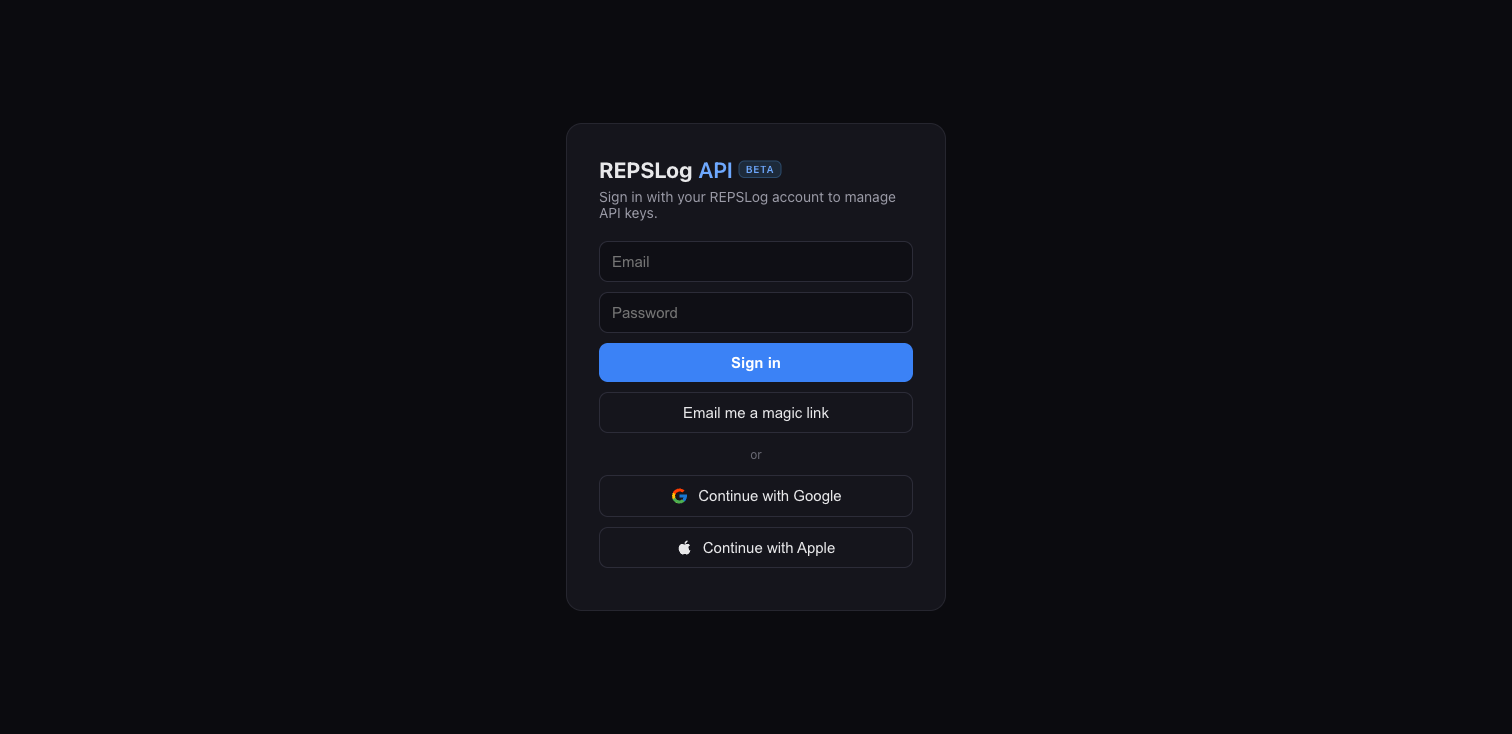
Open api.reps-log.com in any browser. Sign in with the same account you use in the REPSLog app. The portal supports the same sign-in methods as the app:
- Magic link (email)
- Passkey
There is nothing new to register. Once you are signed in, your keys and settings follow your REPSLog account.
Creating an API key
- From the portal, go to Keys and select New key.
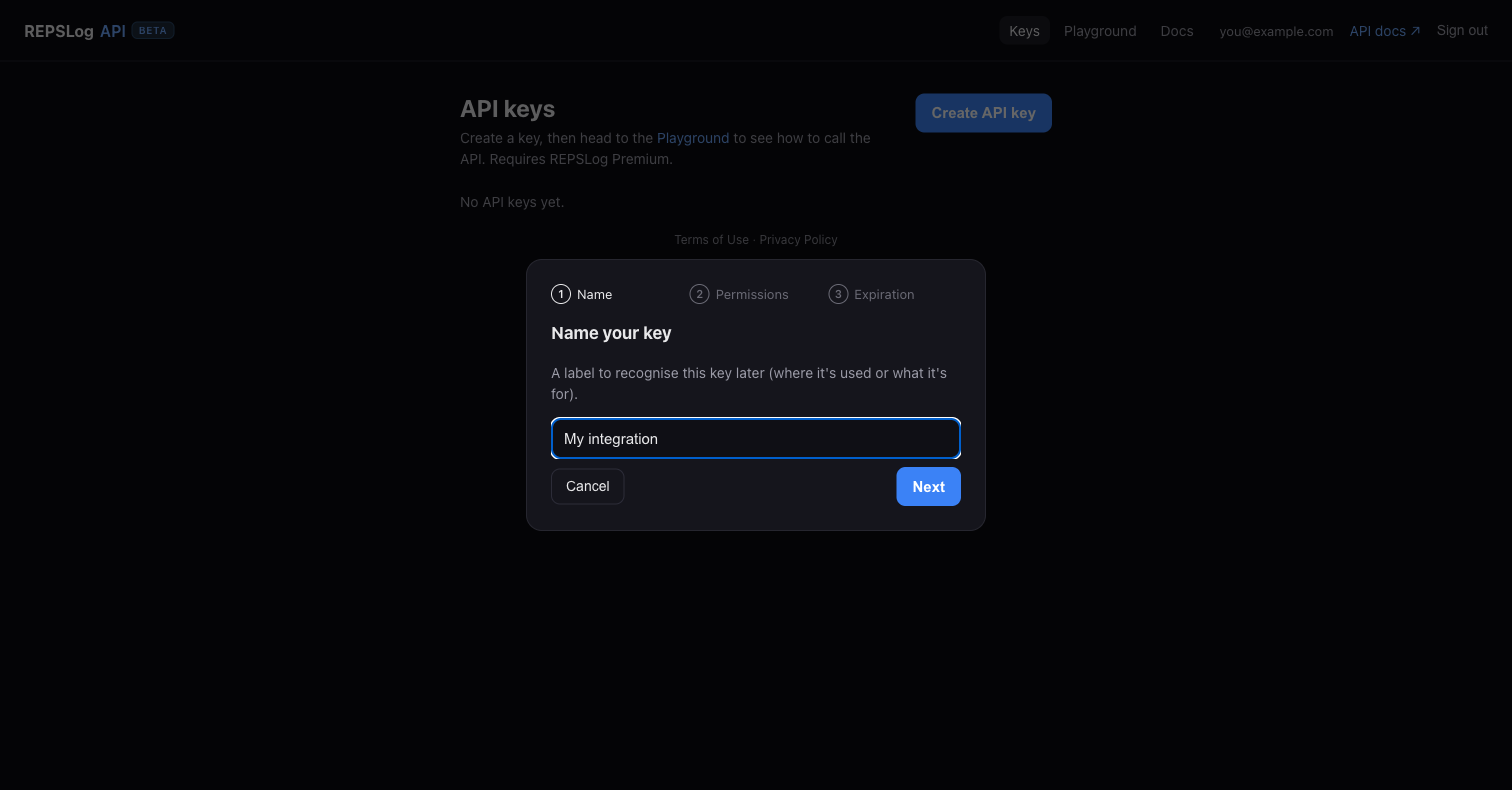
- Give the key a name you will recognize later, for example
Zapier automationorMy logging script. - Choose the scopes the key should have (see below).
- Optionally set an expiry date. After that date the key stops working automatically.
- Select Create.
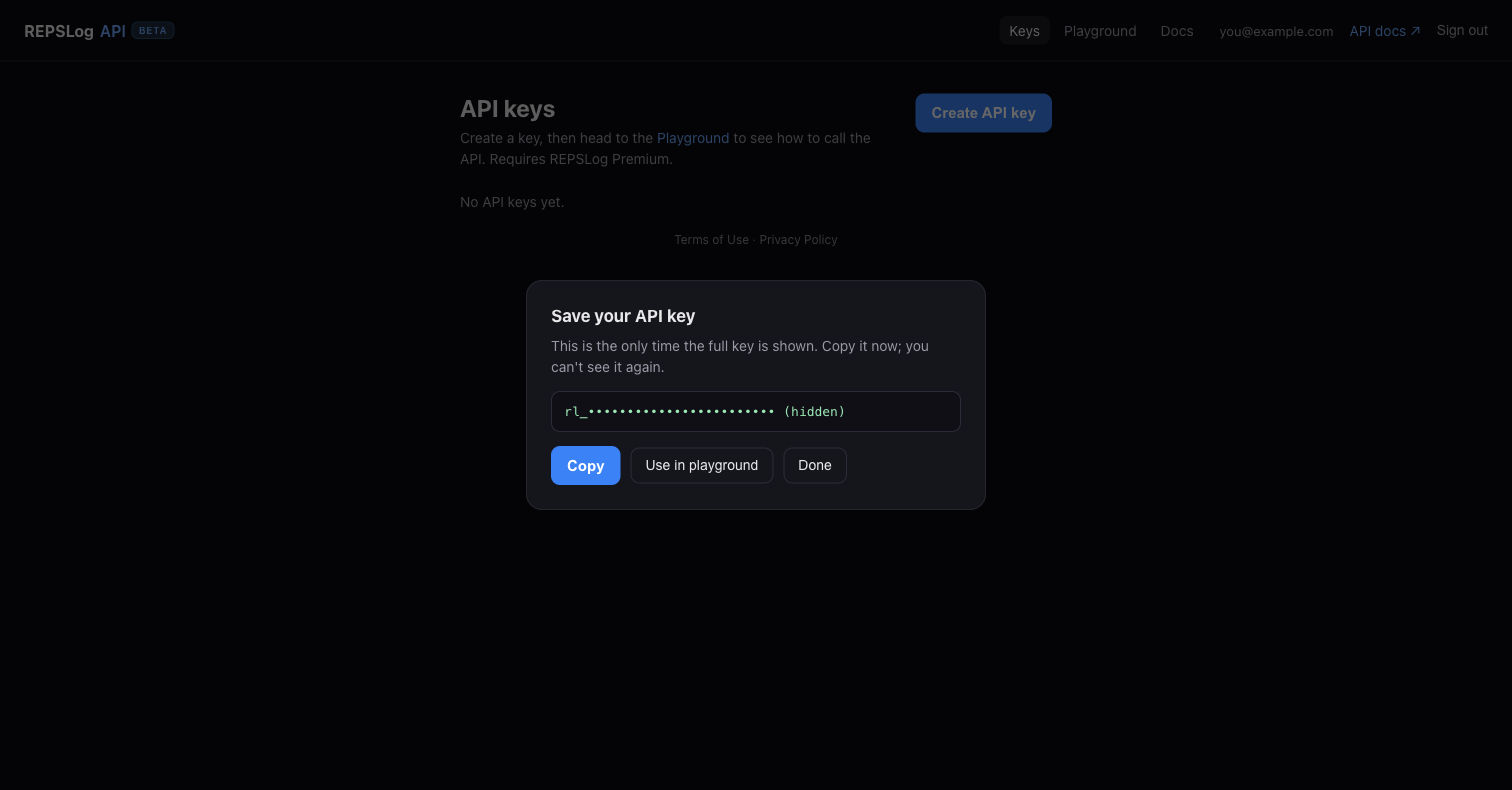
Copy your key now: it is shown only once
When the key is created, the portal shows the full secret value once. It looks like this:
rl_a1b2c3d4.e5f6g7h8i9j0k1l2m3n4o5p6q7r8s9t0
Copy it immediately and store it somewhere safe. For security, REPSLog never stores the full secret, so this is the only time it is ever displayed. If you close this screen without copying it, you cannot recover the value. You will have to rotate the key (or create a new one) to get a fresh secret.
Scopes
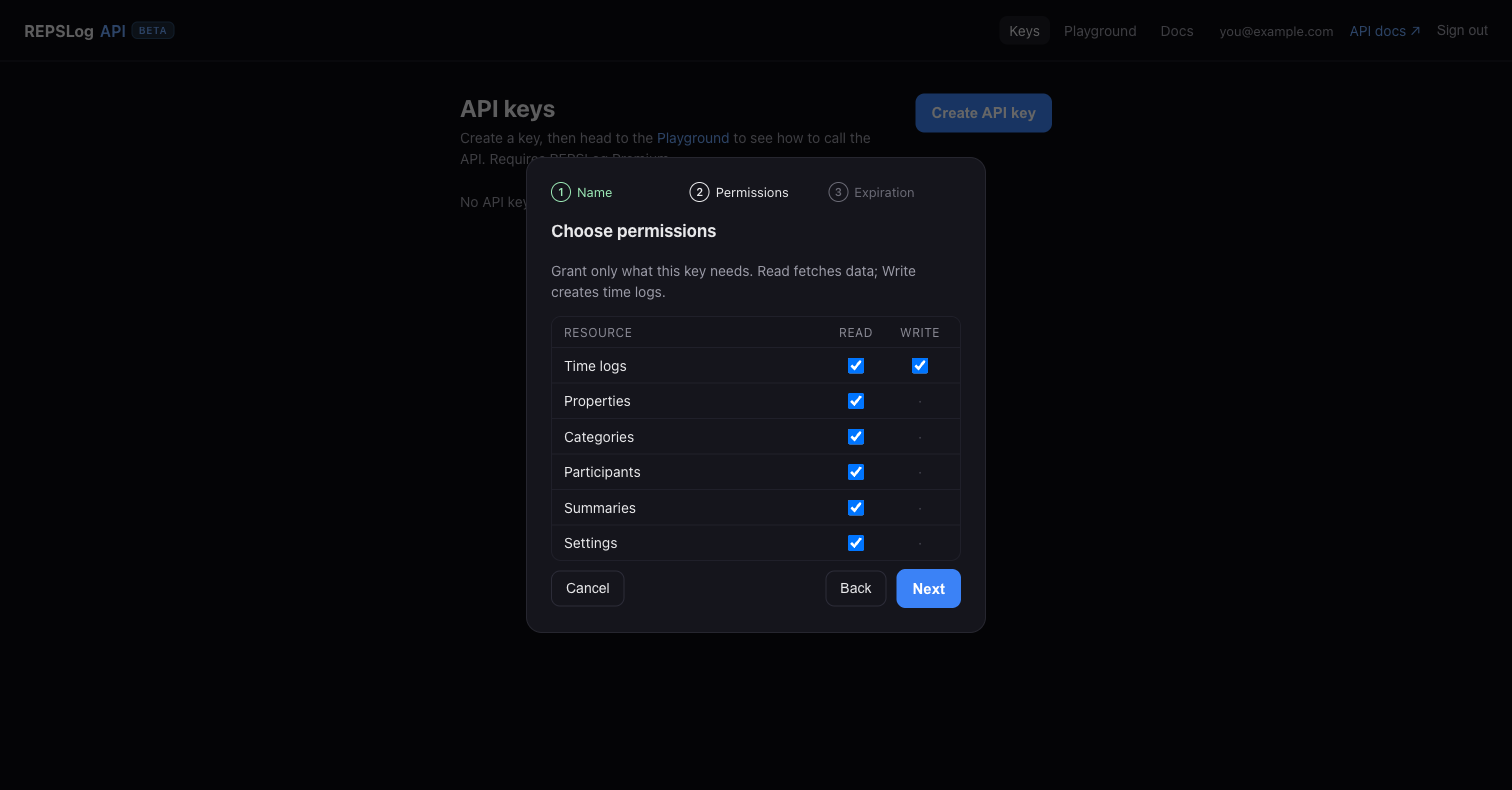
Scopes control what a key is allowed to do. You pick them per key, so you can hand out a read-only key for a dashboard and keep a separate read-write key for automation.
Scopes are organized per resource, for example:
- Time logs: read your logged hours, or read and write new entries
- Properties: read your property list
- Categories: read your categories
- Participants: read your participants
- Hours summary: read totals and breakdowns
Grant only what each integration needs. A key that just reads reports does not need write access.
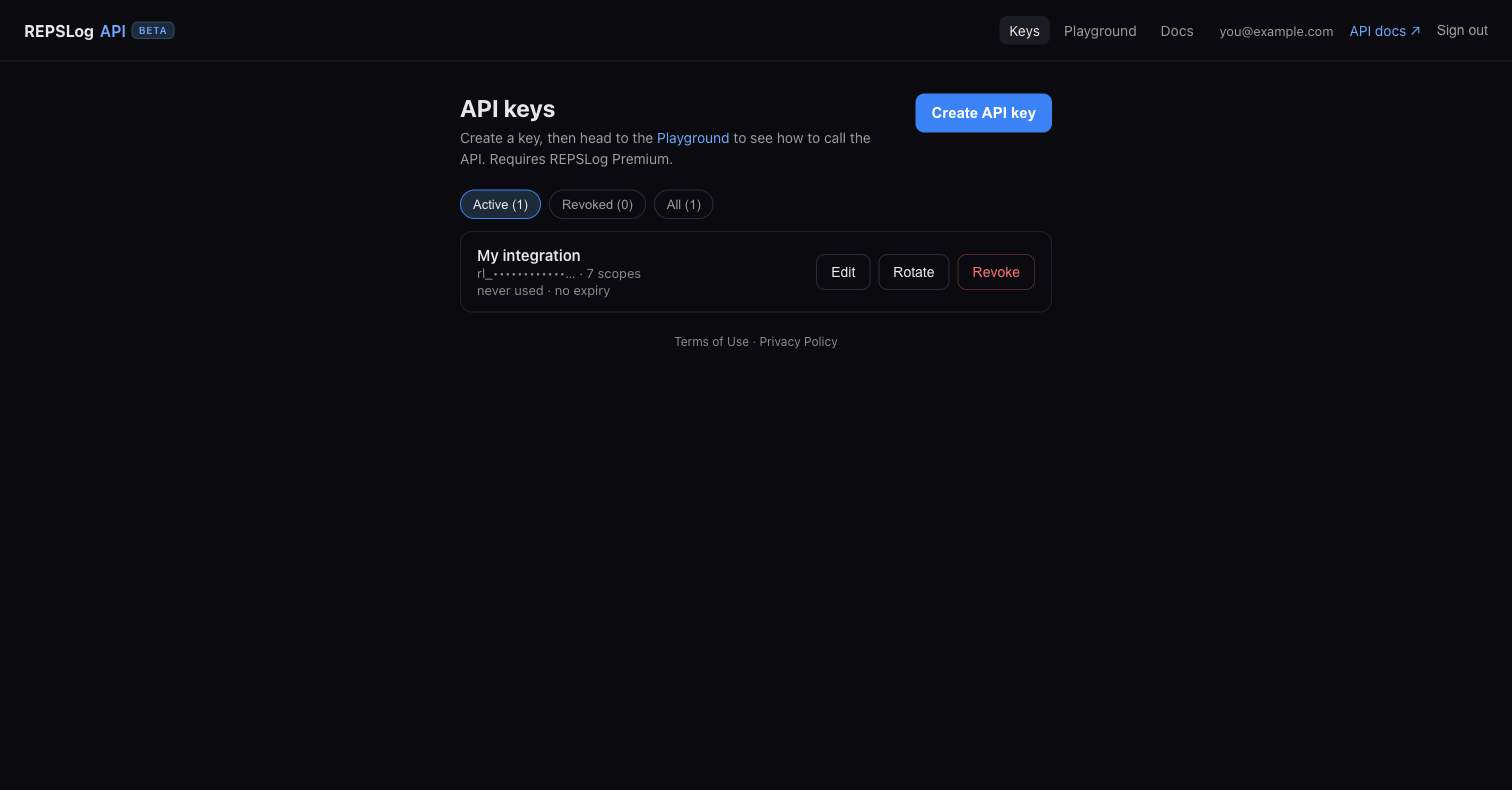
Rotating a key
Rotating replaces a key's secret with a brand new one while keeping the same key name and scopes. Use it when you suspect a secret may have been exposed, or on a regular schedule as good hygiene.
- Open the key from your Keys list.
- Select Rotate.
- Copy the new secret on the one-time reveal screen, exactly as you did at creation.
- Update every integration that used the old secret. The old secret stops working right away.
Revoking a key
Revoking permanently disables a key. Any integration using it stops working immediately. This cannot be undone, so for an active integration, rotate instead of revoke unless you intend to shut it off.
- Open the key from your Keys list.
- Select Revoke and confirm.
A revoked key stays in your list (marked revoked) so you keep a record of what existed.
Filtering your keys list
The Keys list has filters so you can focus on what matters:
- Active: keys that currently work
- Revoked: keys you have disabled
- All: everything, active and revoked together
Playground: try endpoints live
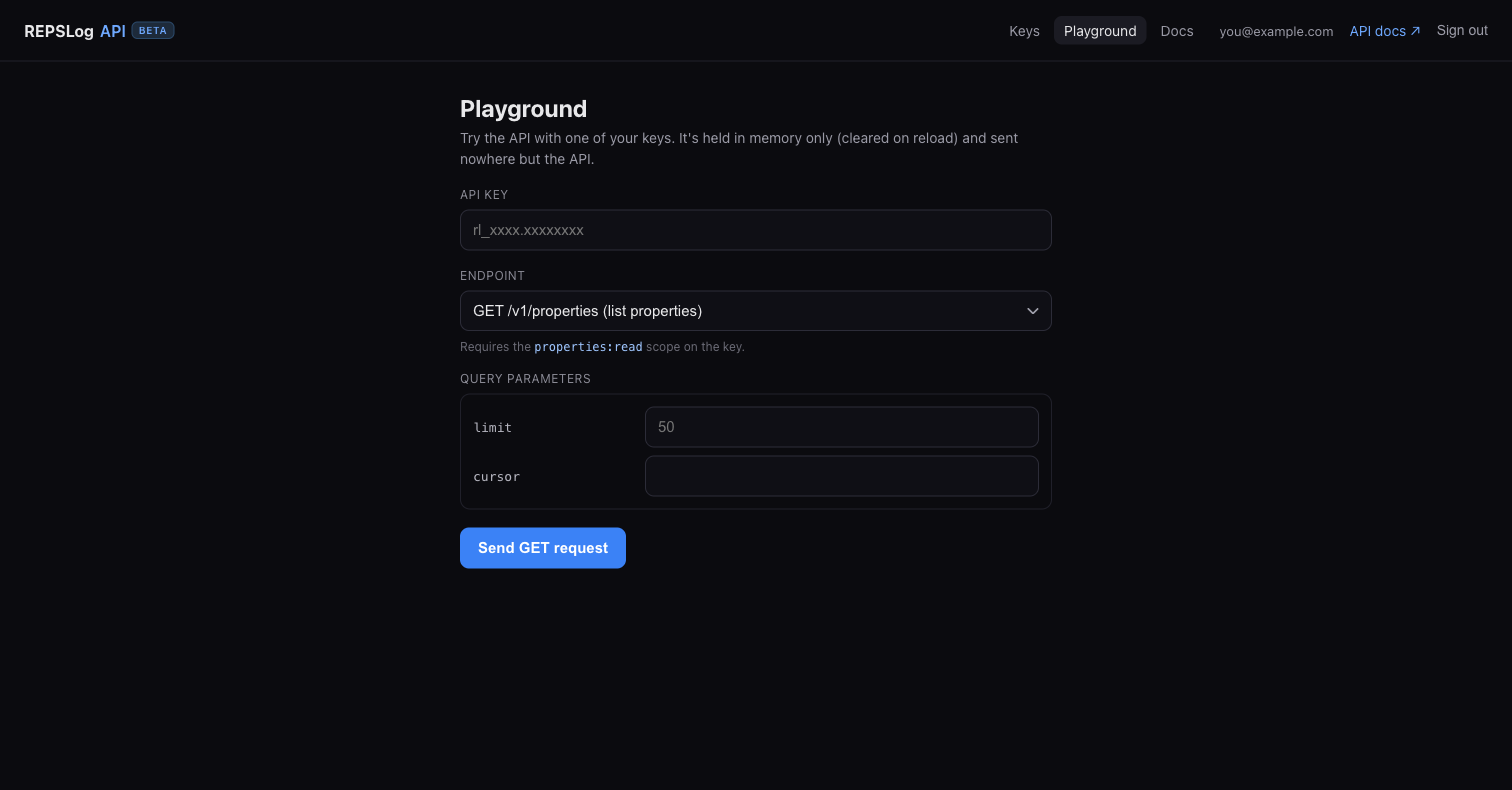
The Playground lets you call any API endpoint right in the browser using one of your own keys, so you can see real responses before writing a single line of code.
- Open Playground in the portal.
- Pick the key you want to use.
- Choose an endpoint, fill in any parameters, and send the request.
- Inspect the live response.
The key you select is held in memory for that session only. It is not saved into the page.
Where the API docs are
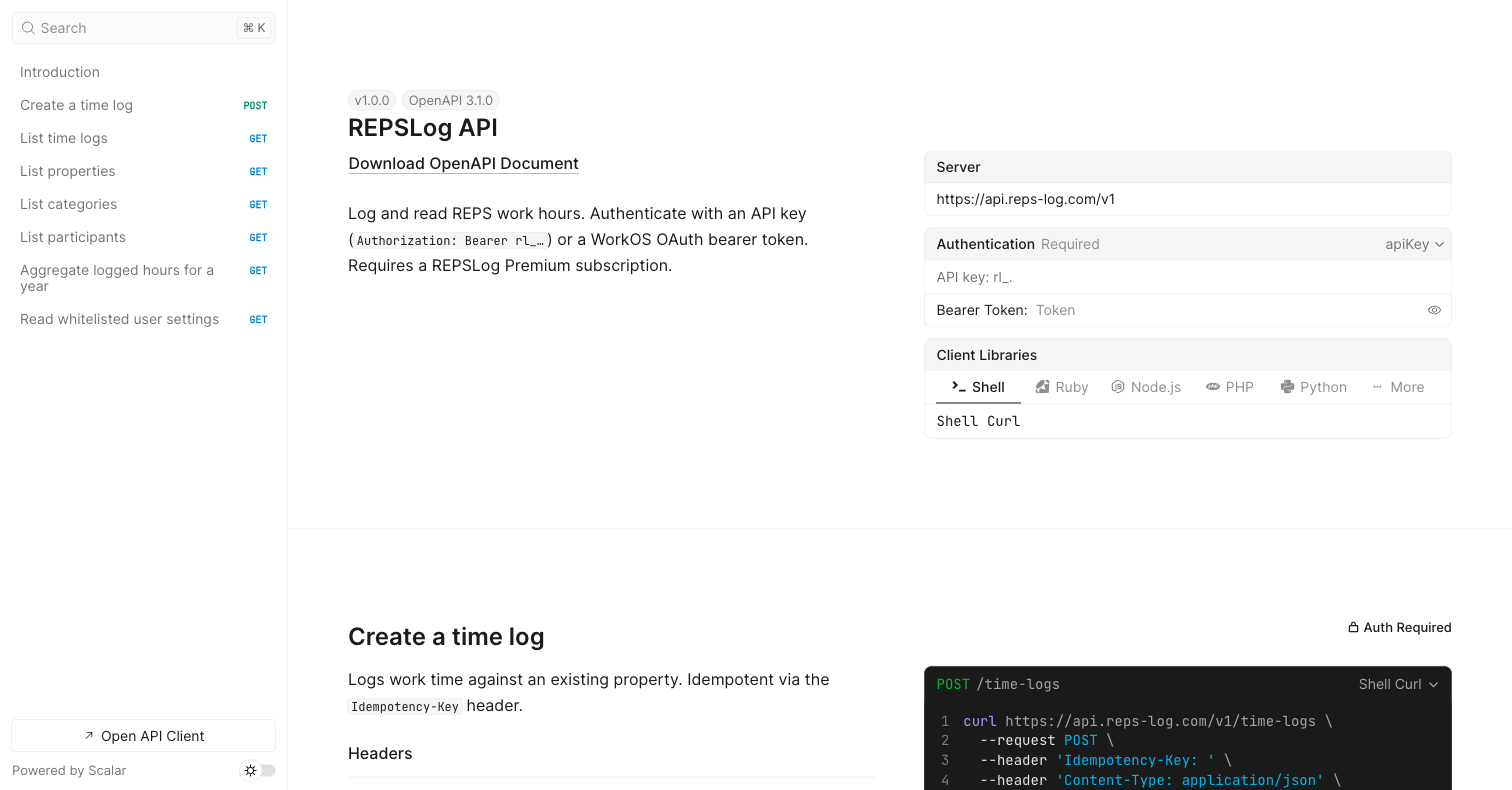
The full API reference, with every endpoint, parameter, and example, lives at:
The portal's Getting Started page also walks through the auth model and includes ready-to-run curl examples that link into those docs.
Keeping your keys secure
Treat an API key like a password. Anyone who has it can act on your REPSLog data within that key's scopes.
- Store keys safely. Use a secrets manager or your platform's environment variables. Do not paste keys into emails, chat messages, screenshots, or shared documents.
- Never commit a key to source control. If a key lands in a public or shared repository, treat it as leaked.
- Use the least scope needed. A read-only key cannot create or change entries.
- Set an expiry for short-lived or experimental keys.
- If a key is leaked, revoke it immediately (or rotate it if the integration must keep running), then update the integration with the new secret.
Related articles
- Connecting ChatGPT to REPSLog
- Connecting Claude to REPSLog
- What you can do with the REPSLog API
See also
Feature overview
Related articles
- What Is the REPSLog API & AI Assistant Integration?
- Connect REPSLog to ChatGPT
- Connect REPSLog to Claude
- Connect REPSLog to Grok
- Developer quickstart & API reference
- Use cases & example prompts
Try it in REPSLog: iPhone, Android or the web app. Free for 14 days.